If QuickBooks already plays a central role in your accounting, you probably know it can do more than keep track of your financial activity. It also includes automation features that can take some of the repetitive work out of managing accounts receivable (AR).
QuickBooks accounts receivable automation can handle several parts of the process, from sending invoice reminders to automating certain payment workflows.
The question is how much of your current accounts receivable process you can automate in QuickBooks, and what you can do when your collection needs go beyond what those features can handle.
TL;DR
- QuickBooks accounts receivable automation can handle recurring AR work such as invoice reminders, recurring invoices, online payments, and certain payment workflows.
- Businesses can set up these automations in stages, then review their outstanding AR to see which tasks still require manual follow-up.
- QuickBooks automation works best when reminder timing and payment terms reflect how customers actually pay, while accounts with disputes or payment issues may still need personal attention.
- If invoices continue to age and employees still spend significant time chasing overdue payments, the business may need a more dedicated process for managing collections.
- AR Workflow works alongside QuickBooks to help restoration companies automate more collection follow-up around unpaid invoices without replacing their existing accounting system.
What Accounts Receivable Tasks Can You Automate in QuickBooks?
QuickBooks includes AR automation tools that can handle several tasks your team would otherwise need to remember to do manually.
Automatic invoice reminders are one of the most relevant examples. QuickBooks Online lets you schedule reminders before or after an invoice due date and customize the message customers receive.
Once configured, your team does not have to manually track every due date just to determine when the next reminder should go out.
Businesses with customers on predictable billing schedules can also create recurring invoices. QuickBooks lets users create recurring transaction templates, while QuickBooks Payments can support automatic credit card or ACH payments in eligible recurring setups.
QuickBooks Online Advanced adds another layer through automated workflows. These workflows can trigger reminders and actions based on conditions you define, including workflows related to invoices and payment collection.
How to Set Up Accounts Receivable Automation in QuickBooks
Here's a step-by-step guide to setting up accounts receivable automation in QuickBooks.
Step 1. Set Up Automatic Invoice Reminders
First, set up the reminders that QuickBooks will send when an invoice is approaching or has passed its due date.
QuickBooks Online allows you to configure automatic invoice reminders that go out before or after an invoice becomes due. You can also customize the reminder email so the customer receives a message that fits how your business normally communicates about payment.
Think about your existing payment terms when choosing the timing. A reminder that goes out too early may add unnecessary communication, while one that goes out too late gives an overdue invoice more time to sit without attention.
Once you have the timing set, QuickBooks can handle these routine reminders without requiring someone on your team to check the due date and send the same type of email manually.
Step 2. Set Up Recurring Invoices Where Applicable
Next, look at whether any invoices your business sends on a regular schedule can be automated as well.
QuickBooks Online lets you create recurring invoice templates for customers you invoice daily, weekly, monthly, or yearly. Once you set the schedule, QuickBooks can generate those invoices without requiring someone to create the same invoice each time.
Only use this feature where the billing relationship is actually recurring. A restoration company, for example, typically bills around individual jobs rather than charging the same property owner every month.
Recurring invoices may still make sense for any services you provide on a predictable schedule. Job-specific invoices should continue to follow the billing process that fits the individual job.
Step 3. Enable Online Payments and Autopay Where Applicable
After setting up how invoices and reminders go out, look at how customers can pay them.
QuickBooks Payments lets you add digital payment options for eligible invoices, including ACH payments from a customer's bank account.
If you use recurring invoices, eligible customers can also enroll in Autopay for recurring payments that process automatically. QuickBooks Payments is required for this feature.
Again, Autopay will not make sense for every invoice. It works best when a customer owes a predictable amount on a recurring schedule.
For one-time invoices, the more relevant step is making it easy for customers to pay once they receive the invoice. Giving them a convenient online payment option removes extra steps that could delay payment and can help your business get paid faster.
Step 4. Create Automated AR Workflows
Once those basic automations are in place, QuickBooks Online Advanced users can build workflows around AR tasks that still require regular action.
QuickBooks currently provides more than 60 workflow templates covering areas such as invoices, bills, estimates, and payments. For AR, these workflows can automate actions based on conditions you define.
For example, you can create automated payment reminders that contact customers when payment becomes overdue. QuickBooks defaults this reminder to one day after the due date, although you can change the timing.
Look at the repetitive tasks your team still performs and determine whether a workflow can handle any of them. This lets you build additional automation around your actual process rather than setting up workflows you do not need.
Step 5. Review Your Outstanding AR and Adjust the Automation
Once everything is running, the final step is to check what your automation is handling and which manual processes still require your team's attention.
Review your open invoices and aging receivables. Check whether reminders are going out at the right time and whether employees still need to repeatedly follow up on the same accounts.
You may find that certain reminders need to go out earlier or that a workflow needs different conditions. You may also find that QuickBooks' existing automation tools already handle enough of the process for your current needs.
Pay particular attention to which daily AR management tasks your team still has to handle after automation has done its job.
If employees still spend considerable time chasing overdue payments or keeping track of collection activity manually, that gives you a clearer picture of where your current AR process still needs work.
How to Get More From QuickBooks AR Automation
Setting up automation is only the beginning. It still needs to support timely payments while matching the way your team manages outstanding accounts.
Start by reviewing your payment terms and reminder timing together. If an invoice is due in 30 days, decide when communication should begin and how long you want an account to sit overdue before someone reviews it personally.
Keep your automated reminders clear as well. A customer should be able to tell which invoice the reminder refers to, how much they owe, when payment was due, and how they can pay without having to contact your team for basic information.
It also helps to separate routine follow-up from accounts that need a person involved. Automation works well for predictable tasks. A disputed invoice or a customer who has already explained a payment problem may require a different response.
Finally, review your aging AR regularly. The goal is not to automate every possible action. It is to reduce repetitive work while making it easier for your team to see which outstanding invoices still need attention.
When You Need More Than QuickBooks AR Automation
QuickBooks can handle a meaningful amount of the automation involved in receivables management. If its reminders, payment options, and workflows already keep your receivables manageable without requiring much manual follow-up, you may not need anything more.
You may want to look beyond your current setup when that is no longer the case. If invoices keep aging and your team still spends a lot of time chasing overdue payments, more of the collections process remains to manage than QuickBooks currently automates for you.
At that point, the issue is not only the extra work. The longer money stays tied up in unpaid invoices, the more pressure those unpaid invoices can put on cash flow.
Atradius’ 2026 U.S. Payment Practices Barometer found that payment problems most commonly left U.S. businesses with less cash on hand.
Businesses also reported that late payments made it harder to create reliable cash flow forecasts for money coming into and going out of the company.
Restoration companies can face the same kind of pressure in keeping cash flow healthy when completed jobs remain unpaid. The business still needs cash for payroll, equipment, and upcoming jobs while money it has already earned remains sitting in accounts receivable.
So, if your team still needs to manually keep track of overdue accounts and follow up after your QuickBooks automations have run, it may be time to add a more dedicated collections process.
Get a demo with AR Workflow and discover what you can do more with its automated platform!
Automate More of Your Collections Process With AR Workflow
If QuickBooks is already handling your accounting and basic AR automation, AR Workflow can help your restoration team manage more of what happens after an invoice becomes overdue.
You can set up collection workflows that determine when follow-up should happen, then automate email and SMS reminders so your team does not have to send each one manually.
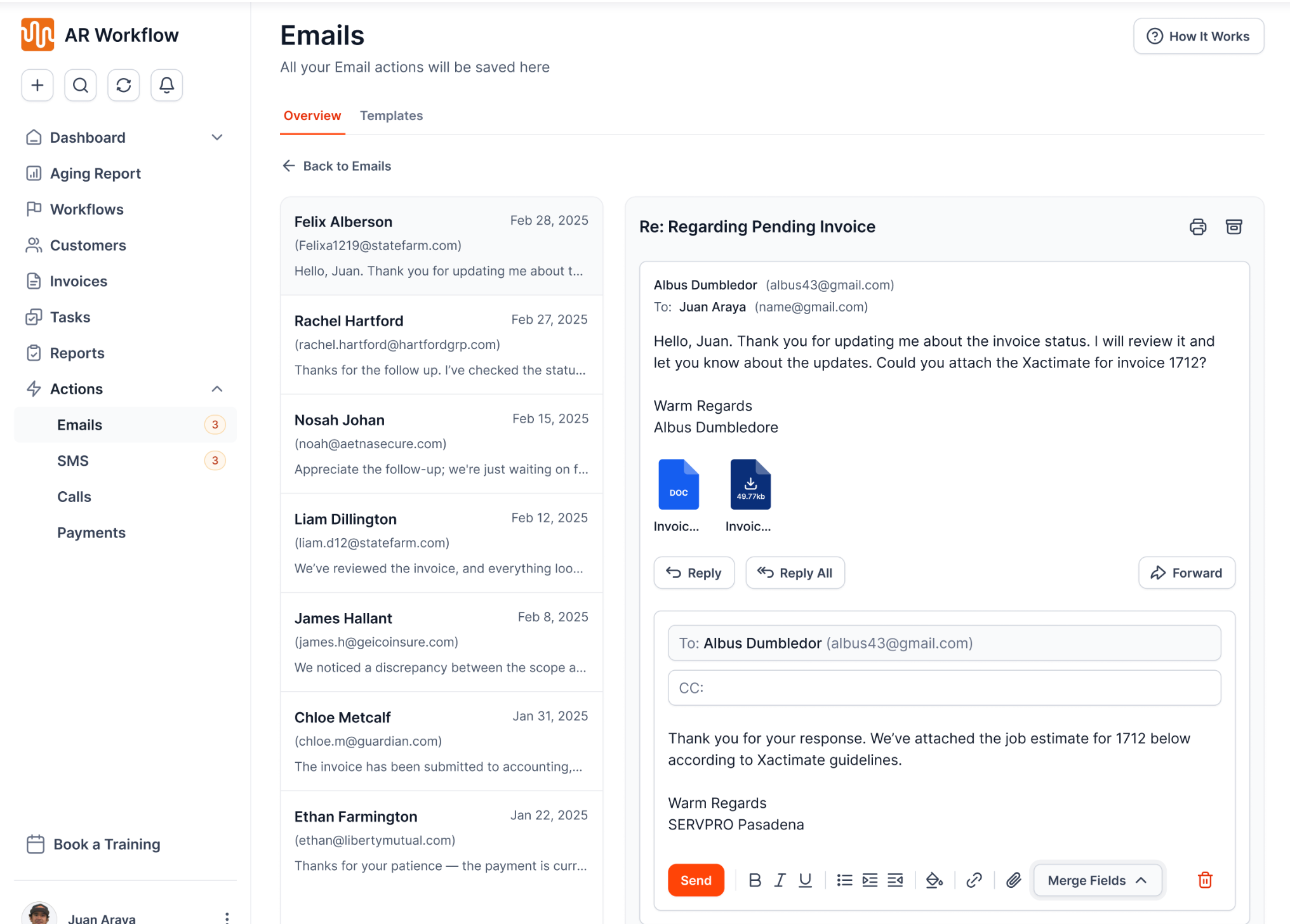
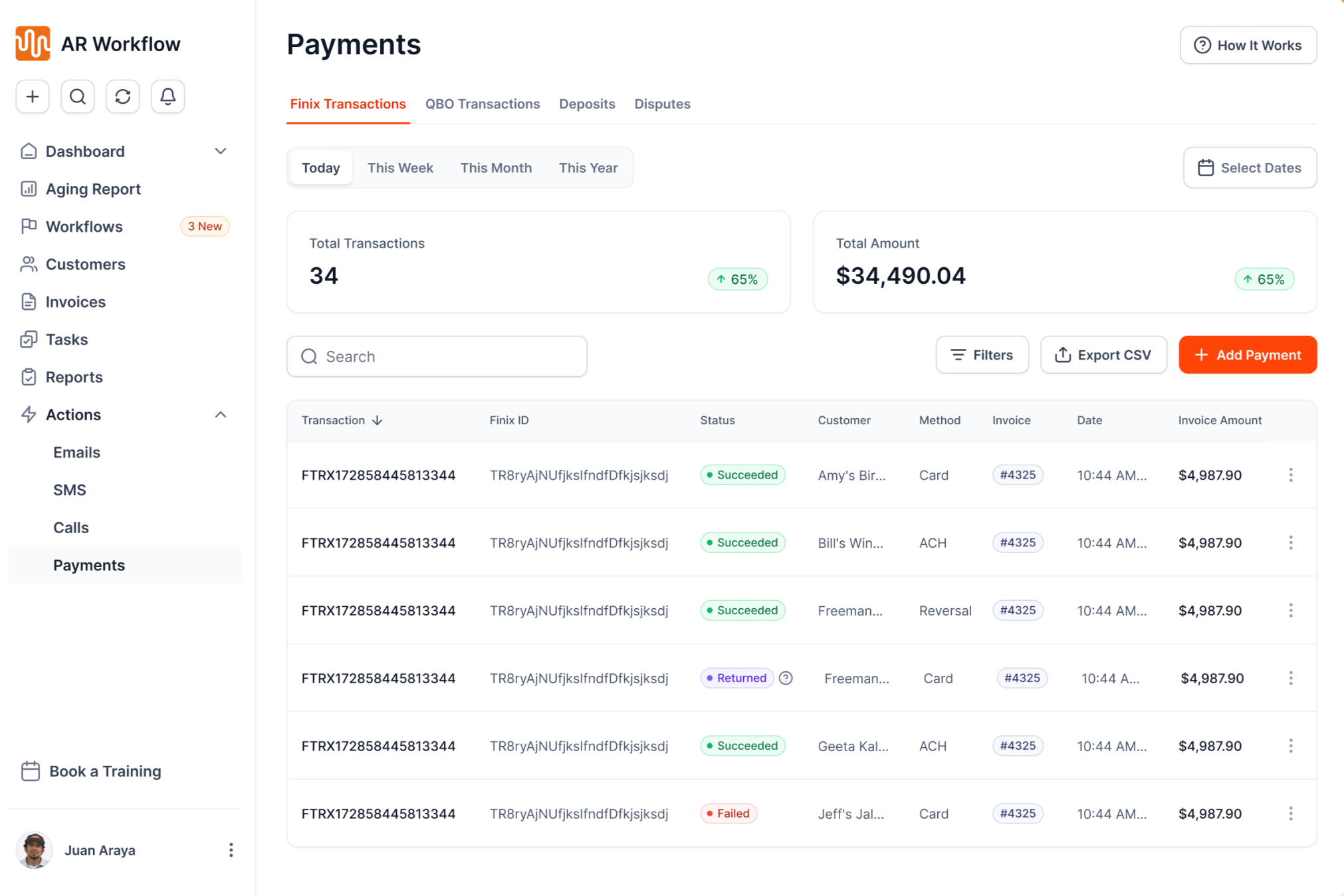
You can also assign follow-up tasks, track customer payments, and see previous communication when you need to check what has already happened with an account.
AR Workflow also gives your team a clearer view of outstanding invoices through invoice status tracking and AR reporting. So when someone needs to follow up personally, they can see the account history and what still needs to happen next.
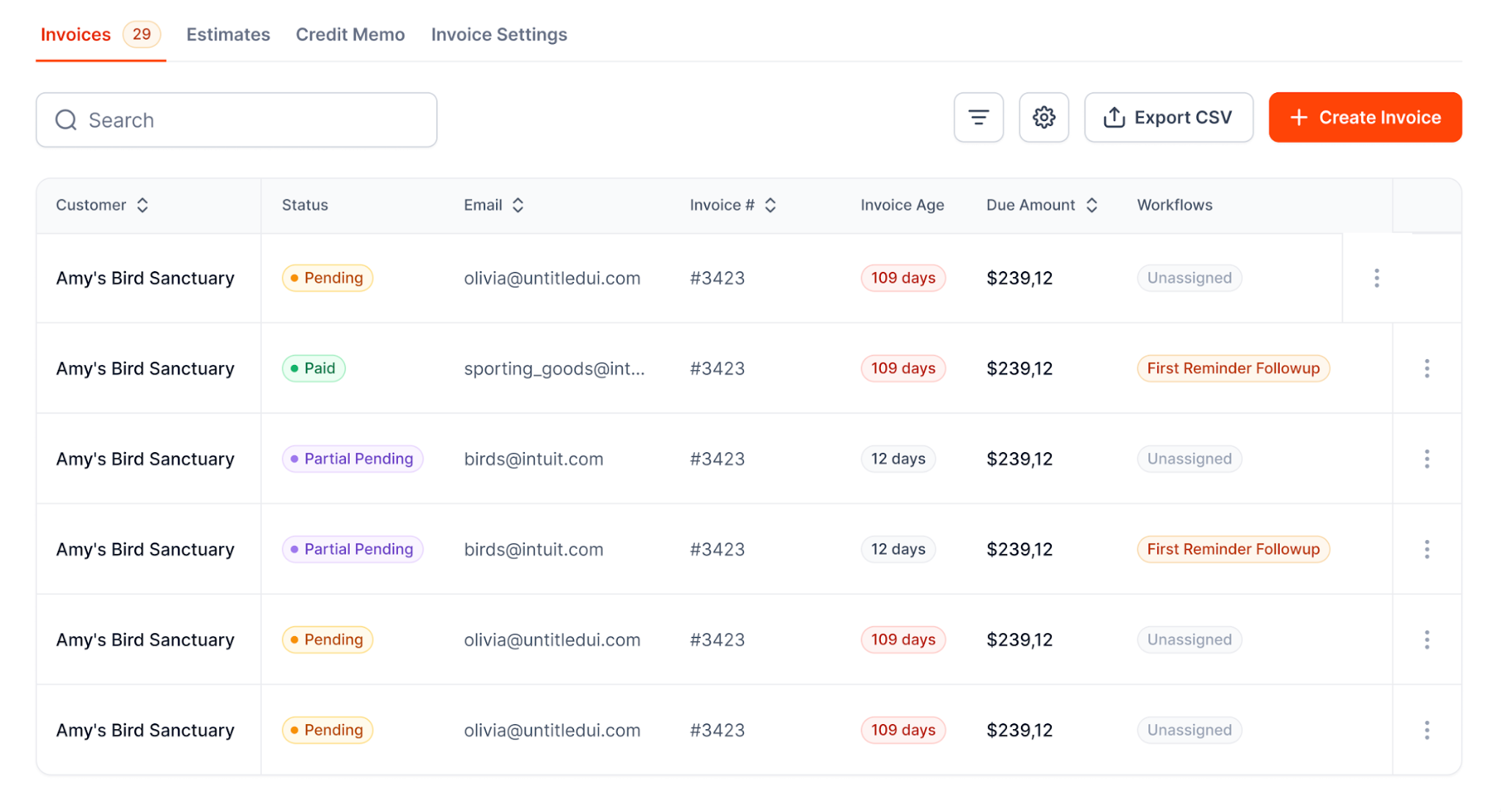
None of this requires you to stop using QuickBooks. AR Workflow's QuickBooks integration lets your accounting stay where it is while your team uses AR Workflow to manage more of the collections work around unpaid invoices.
For restoration companies that have outgrown basic reminders and still spend too much time manually chasing payments, this gives the team more ways to automate invoice follow-up without replacing the accounting system they already use.
Get More From QuickBooks With AR Workflow
QuickBooks accounts receivable automation can remove a meaningful amount of repetitive work from the AR process. The right place to start is with the automation you already have and make sure you are getting as much from it as your business needs.
But if overdue invoices still require your team to manage a large amount of follow-up manually, AR Workflow can work alongside QuickBooks to give that collection activity more structure.
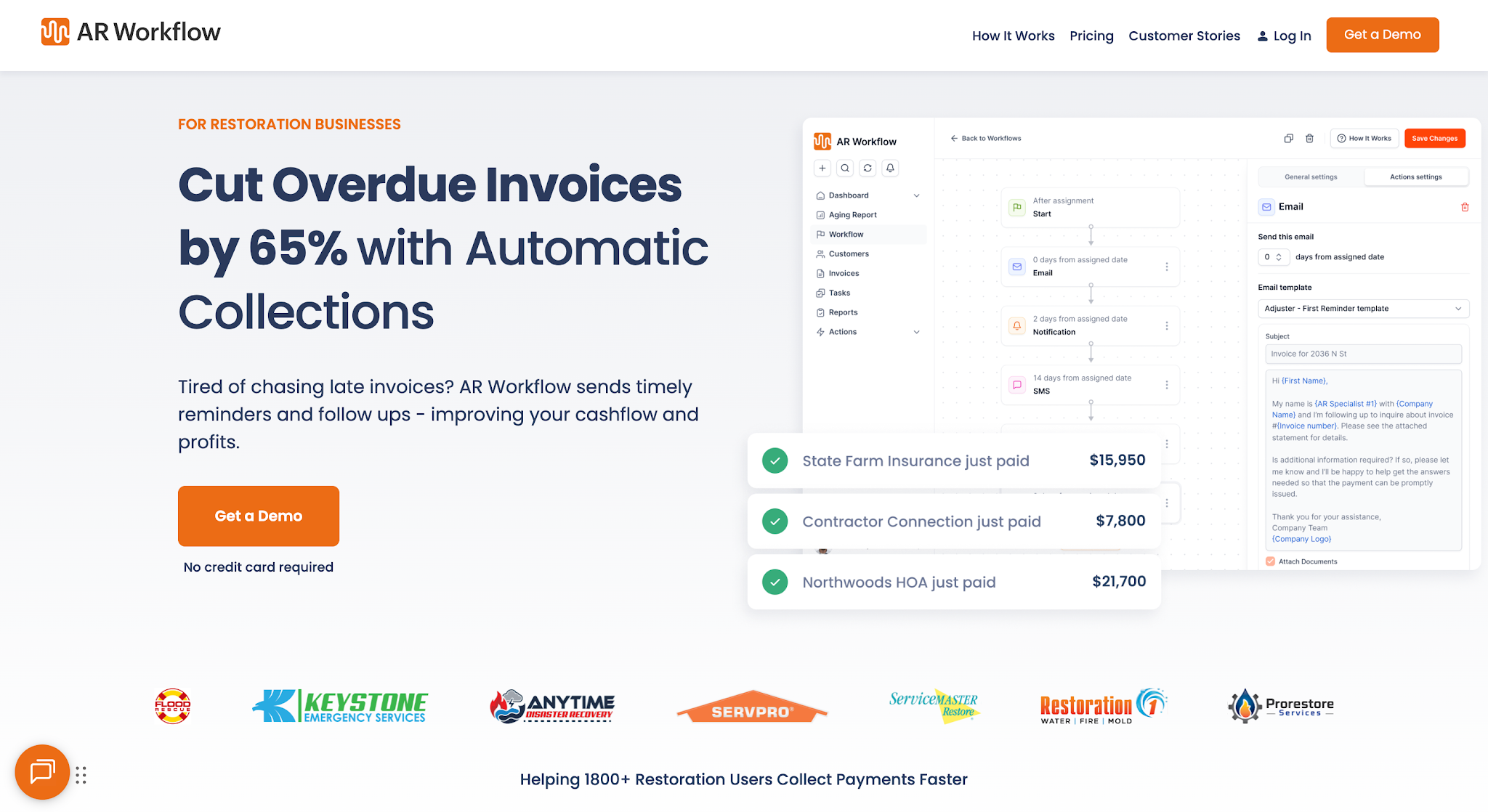
Restoration companies can automate more of the follow-up around outstanding receivables while keeping QuickBooks as part of their existing accounting workflow.
The end goal is simple: spend less time managing repetitive collection work and give more of the money tied up in completed jobs a clear path back into the business.
FAQs About QuickBooks Accounts Receivable Automation
What is the best software for automating accounts receivable?
The best software depends on how much of the AR process you need to automate. QuickBooks can handle tasks such as invoice reminders and recurring invoices, while a dedicated AR automation platform may be better if collections still require significant manual follow-up.
For restoration companies using QuickBooks, AR Workflow can add more automation around collecting outstanding invoices without replacing QuickBooks.
How to use QuickBooks for accounts receivable?
You can use QuickBooks for tracking invoices, outstanding balances, recorded payments, and what customers still owe. QuickBooks users can also automate tasks such as invoice reminders and recurring invoices, depending on their plan and setup.
Why don't accountants like QuickBooks?
Not all accountants dislike QuickBooks, but problems can arise when a company needs more advanced processes or controls than its current QuickBooks setup provides.
What are the five Cs of accounts receivable management?
The five Cs are Character, Capacity, Capital, Collateral, and Conditions. They help businesses assess a customer's creditworthiness before extending credit.