QuickBooks for contractors: set up job costing in QuickBooks Online step by step, split labor across jobs, progress invoicing, retainage and AR reports.

QuickBooks is the accounting software most small contractors run on. It handles invoices, bills, payroll, job costs and taxes, and your accountant almost certainly knows it. But QuickBooks for contractors works best when it is set up for how construction money actually moves: deposits, progress billing, change orders, retainage, insurance checks and subs.
This guide covers which version of QuickBooks contractors should use, how to set it up for job costing, how to invoice and track receivables, what QuickBooks does well, and the one job it leaves to you: chasing the money.
In this video:
QuickBooks tracks your invoices. But who's chasing them? In the next few minutes, you'll learn how to set up QuickBooks the right way for a contracting business. You'll see which jobs make money. And you'll learn how to use QuickBooks to get paid faster.
Most stores sell one thing and get paid on the spot. Contractors don't. You work for weeks. You pay crews and buy materials up front. Then you wait to get paid. Sometimes the money comes from a homeowner. Sometimes from a general contractor or an insurance company. That's why your QuickBooks needs to track jobs, not just sales.
Step one is to set up your customers. Add each customer once, with a good email and a cell phone number. You'll need both later to get paid. Then, for every job, create a project under that customer. So if the Smith family has a roof and a gutter job, that's one customer with two projects. Now every invoice and every cost lands in the right place.
Step two is products and services. These are the line items you put on invoices, like labor, materials, permits, or dump fees. Keep the list short and clear. Use the same names every time. Clean line items make your invoices easy to read. And invoices that are easy to read get paid faster.
Step three is job costing. This shows you if a job made money. Each time you buy materials or pay a crew, tag the cost to the project. Then open the project and look at income minus costs. That's your profit on the job. Do this for a month and you'll know which kinds of jobs to chase and which ones to stop bidding.
Step four is the one most contractors skip. It's the A/R aging report. A/R means accounts receivable. That's money people owe you. The aging report sorts it by how late it is: current, 1 to 30 days, 31 to 60, 61 to 90, and over 90. Here's the rule. The older an invoice gets, the harder it is to collect. So open this report every week, not every month.
Now here's the catch. QuickBooks is great at keeping score. It can send a basic email reminder. But it won't text your customer. It won't tell you who to call first. It won't follow up with the insurance company, or keep going until the invoice is paid. Someone still has to do the chasing. For most contractors, that someone is you, at night, after the job site.
So do this. Pick one day a week for collections. Start with the oldest invoices. Send a friendly text with a payment link. If there's no answer in three days, call. Write down what they said and when they'll pay. And keep it the same every time, so it's never personal. It's just how your business works.
If you'd rather not do all that by hand, that's what we built AR Workflow for. It connects to QuickBooks and does the chasing for you, with texts, emails and calls, and it tells you who to call first. More than 3,200 users get paid about 21 days faster. Want to see it with your own invoices? Bring one overdue invoice and book a demo. The link is below.
KEY TAKEAWAYS
Most contractors pick QuickBooks for practical reasons, not because it was built for construction:
The trade-off is that QuickBooks is general business accounting software. Construction-specific workflows like AIA pay apps, retainage and lien waivers need some setup, a workaround, or an app that connects to it.
Intuit has been moving customers to QuickBooks Online, and most new software for contractors connects to Online first. Desktop is still used by some larger contractors who rely on Enterprise features. Here is how the two compare for a typical contracting business:
| QuickBooks Online | QuickBooks Desktop | |
|---|---|---|
| Access | Browser and mobile app, anywhere | Installed on a computer or hosted server |
| Job costing | Projects (on higher plans) | Customer:Job structure, job reports |
| Progress invoicing | Yes, from estimates | Yes, from estimates |
| App connections | Large app marketplace, most new tools | Fewer, and often through connectors |
| Updates | Automatic | Version upgrades |
| Best for | Most small and mid-size contractors | Larger firms already invested in Desktop Enterprise |
Tip: Plans, features and prices change. Check Intuit's current plan comparison before you buy, and confirm that projects and progress invoicing are included in the plan you choose.
QuickBooks Online comes in four main plans. For contractors, the dividing line is projects: without them, job costing turns into a manual exercise with classes and spreadsheets.
| Plan | Users included | What matters for contractors |
|---|---|---|
| Simple Start | 1 | Invoicing, estimates and expenses. No bills or projects, so it only suits a one-person shop. |
| Essentials | 3 | Adds bill management and time tracking. Still no projects for job costing. |
| Plus | 5 | Adds projects, project profitability reports, classes and locations. The usual starting point for contractors. |
| Advanced | 25 | Adds workflows, more custom fields, deeper reporting and more users. Fits contractors with a full office or several divisions. |
Intuit changes plan features and prices from time to time, so confirm the current list before you upgrade. If you run QuickBooks Desktop, Desktop Enterprise is sold in a Contractor edition with construction-specific reports such as job costing and estimates vs actuals.
A clean setup is the difference between reports you trust and reports you ignore. Do these before you send your first invoice.
| 1 | Build a chart of accounts for construction. Separate income by type (new construction, remodel, service, insurance work), and give job costs their own accounts: materials, subcontractors, direct labor, equipment and permits. Ask your accountant to review it. |
| 2 | Turn on projects. Create one project per job so income, costs, time and payments roll up to that job. This is what makes job profitability reports work. |
| 3 | Add products and services. Save your common line items with units, rates and the right income account. Every estimate and invoice will then go out the same way. |
| 4 | Set up classes or locations. Use them for divisions or crews, such as roofing vs gutters or north vs south branch, if you want profit by division. |
| 5 | Add custom fields. Job address, PO number, claim number, adjuster or GC project number: whatever your customers need to see to approve an invoice. |
| 6 | Connect your bank and card accounts. Match transactions daily or weekly so job costs stay current. |
| 7 | Turn on online payments. Card and ACH on every invoice. The easier it is to pay, the sooner you get paid. |
| 8 | Set up subcontractors as 1099 vendors. Collect W-9s and certificates of insurance before the first payment. |
Every business is different and your accountant should have the final say, but a contractor chart of accounts usually separates income by type of work and keeps job costs out of overhead.
| Section | Example accounts |
|---|---|
| Income | Construction income, Remodel income, Service and repair income, Insurance work income, Change order income |
| Cost of goods sold (job costs) | Materials, Subcontractors, Direct labor, Equipment rental, Permits and fees, Dump and disposal |
| Current assets | Accounts receivable, Retainage receivable, Undeposited funds |
| Current liabilities | Customer deposits, Retainage payable, Sales tax payable |
| Overhead expenses | Office rent, Vehicle and fuel, Insurance, Office salaries, Software, Marketing |
Tip: Sales tax on materials and labor is handled differently from state to state, and some states treat contractors as the end consumer of materials. Ask your accountant how your state applies it before you set up your products and services.
Job costing answers one question: did this job make money? In QuickBooks Online, it comes from tagging every cost and every invoice to a project.
| Cost type | How to record it | Tag to project? |
|---|---|---|
| Materials | Bills or expenses from suppliers | Yes, on every line |
| Subcontractors | Bills from subs, paid as 1099 vendors | Yes |
| Direct labor | Payroll with time tracked to the project | Yes, through time entries |
| Equipment rental | Bills or expenses | Yes |
| Permits and fees | Expenses | Yes |
| Office rent, insurance, trucks | Overhead expenses | No, these are overhead |
Once costs are tagged, the project profitability report shows income, costs and margin by job. Compare it with your estimate after every job closes. That is how you find the line items you keep underpricing.
QuickBooks does not produce a true work-in-progress (WIP) schedule with over and under billings. Contractors who need one for a bank or bonding company usually build it in a spreadsheet from QuickBooks data with their accountant.
Job costing in QuickBooks Online only works if it is set up before the first cost comes in. Turning on projects halfway through a job means going back and retagging bills by hand. Here is the order to do it in. Menu names move from time to time, so if a step does not match your screen, search Intuit's help for the feature name.
| 1 | Turn on projects. In Account and settings, open the Advanced tab and switch on projects. You need a plan that includes them, usually Plus or Advanced. |
| 2 | Create one project per job. Attach it to the customer and name it the way your crew talks about the job, such as "Smith kitchen, 14 Oak St." Service calls can stay as plain invoices; projects are for jobs with several costs. |
| 3 | Set up cost and income on your products and services. For items you buy and resell, fill in both the purchase and sales side so the cost lands in a job cost account and the sale lands in the right income account. |
| 4 | Give labor a cost. Track time to the project, and set a cost rate for each employee or subcontractor, or run payroll in QuickBooks so labor cost flows to the project. Without this, project reports show materials but not labor, and every job looks more profitable than it is. |
| 5 | Tag every bill, expense and check to the project. Use the customer/project column on each line. Mark a line billable if you pass the cost through to the customer, so it shows up on the unbilled report. |
| 6 | Bill from the project. Create the estimate inside the project, then progress invoice against it. Income and costs now sit side by side. |
| 7 | Review the project reports. Project profitability, estimates vs actuals, time cost by employee or vendor, and unbilled time and expenses. Check them mid-job, not just at closeout, so you can fix a problem while there is still work left to bill. |
Here is what the estimates vs actuals view tells you once costs are tagged. The job and numbers are made up for illustration.
| Cost line | Estimated | Actual | Difference |
|---|---|---|---|
| Materials | $8,400 | $8,950 | -$550 |
| Direct labor | $6,200 | $7,700 | -$1,500 |
| Subcontractors | $4,000 | $4,000 | $0 |
| Permits and disposal | $900 | $1,050 | -$150 |
| Total cost | $19,500 | $21,700 | -$2,200 |
On a $27,000 contract, the estimated margin was $7,500. The actual margin was $5,300, and most of the gap was labor. That is the line to look at on the next estimate. Your construction bookkeeping routine is what keeps these numbers current enough to act on.
Tip: If you bill commercial work on AIA forms, QuickBooks progress invoices will not produce a G702 and G703 on their own. Our pay application guide shows how to build them from your schedule of values.
QuickBooks tracks your invoices. Who's chasing them?
Bring one overdue invoice and see how AR Workflow would follow it up from QuickBooks Online.
Build the estimate in QuickBooks, or sync it from your estimating tool, using your saved products and services. When the customer signs, convert it to an invoice so nothing gets retyped.
Progress invoicing lets you bill a percentage or a set amount of the estimate at each milestone. Each invoice shows what was billed before and what is left, which helps homeowners, GCs and property managers approve it quickly.
Add approved change orders to the estimate, or invoice them separately with a reference to the signed change order. Never fold them into an existing line, because it hides the reason the price changed.
QuickBooks Online does not have a dedicated retainage feature. A common approach is to bill the full amount, then add a negative line for retainage held that posts to a retainage receivable account. When the retainage is released, invoice it from that account. Ask your accountant to confirm the setup for your business.
Record each deposit and each insurance payment against the invoice, so the balance due is always right. For two-party checks, note who endorsed it and when, so you know whether you are waiting on the homeowner or the mortgage company.
QuickBooks gives contractors solid basics for tracking what is owed:
Read our guide to the AR aging report for how to read it and what to do with each bucket. To set up reminders, recurring invoices, autopay and workflows step by step, see QuickBooks accounts receivable automation.
The aging report shows what is owed. It does not show which invoices nobody has followed up on, and it does not do the follow-up. For contractors, that gap is where cash gets stuck.
| What you need | QuickBooks Online | What contractors usually do |
|---|---|---|
| Reminders by text and voicemail | Email reminders only | Someone texts and calls by hand, when they have time |
| Different follow-up by payer | Same reminder for everyone | Homeowners, adjusters, GCs and property managers all get the same email |
| Pause on a promise to pay | Not tracked | Notes in a spreadsheet or someone's head |
| A daily list of who to contact | Not available | The office manager scans the aging report |
| A log of every touch on an invoice | Limited | Scattered across email, phones and sticky notes |
| Payment plans | Manual | Separate invoices or a spreadsheet |
None of this is a knock on QuickBooks. It is accounting software, and it does accounting well. Collections is a separate job, and on most contractor teams nobody owns it full time. That is the gap contractor accounts receivable automation is built to fill.
| 1 | Leaving costs untagged. A materials bill without a project goes to overhead, and the job looks more profitable than it was. |
| 2 | Recording deposits as income. Many accountants book customer deposits to a liability account until the work is done. Ask yours how to handle them. |
| 3 | Invoicing change orders late. Bill approved change orders with the next progress invoice, not at the end of the job when the customer has forgotten approving them. |
| 4 | Depositing insurance checks without matching an invoice. The payment then sits as unapplied cash and the aging report shows the customer still owes the full amount. |
| 5 | Using one customer for everything. Set up the homeowner, the carrier claim and the general contractor correctly so statements and reminders reach the right person. |
| 6 | Reconciling once a quarter. Monthly bank reconciliation keeps job costs and cash accurate enough to make decisions. |
Twenty to thirty minutes a week keeps the books current and the receivables moving:
| 1 | Monday: invoice everything that finished last week. Every day between completion and the invoice is a day added to getting paid. |
| 2 | Monday: run the A/R aging report. Sort by amount. Pick the largest balances in each bucket to follow up first. |
| 3 | Tuesday: match bank transactions. Tag each cost to a project while you still remember which job it was for. |
| 4 | Wednesday: follow up on anything over 15 days. Email, then text, then call. Note the outcome and any promise date. Our payment reminder email templates cover the wording. |
| 5 | Thursday: enter bills and approve sub payments. Check lien waivers and certificates of insurance before paying subs. |
| 6 | Friday: review open estimates and change orders. Unsigned change orders become invoice disputes later. |
Example: Summit Ridge Builders, 6 open jobs
A remodeling contractor on QuickBooks Online with one office manager.
| Open invoices in QuickBooks | 23 |
| Total open balance | $184,600 |
| Invoices over 30 days | 9 |
| Invoices over 30 days with no follow-up logged in the last two weeks | 6 |
| Balance on those 6 invoices | $61,200 |
The aging report showed $184,600 owed. It did not show that a third of it had not been touched in two weeks. That is the number to fix first.
Example company, customer and amounts are made up for illustration.
Most QuickBooks problems on a contracting team are training problems. The software was set up correctly once, then a new office hire or a project manager started entering things their own way. A little QuickBooks for contractors training for each role prevents most of it.
| Role | Training focus |
|---|---|
| Owner | Reading the project profitability, estimates vs actuals, A/R aging and profit and loss reports. Knowing which numbers to ask about each week. |
| Office manager | Estimates, progress invoicing, change orders, receiving payments against the right invoice, deposits, statements and the aging report. |
| Project managers and field leads | Entering time to the right project, snapping receipts, and flagging change orders before the work is done. |
| Bookkeeper | Bank reconciliation, tagging costs to projects, retainage, 1099 vendors and month-end close with your accountant. |
If you are still deciding whether QuickBooks is the right base at all, our guide to accounting software for construction contractors compares it with construction-specific options.
The setup above works for most trades. These adjustments make QuickBooks fit how each one gets paid.
Add custom fields for claim number and carrier, list supplements as their own lines, and record ACV, depreciation and deductible payments separately. See our roofing page for how AR Workflow follows up each payer.
Track mitigation, contents and rebuild as separate invoices or projects, since they often have different payers and timelines. Read restoration insurance billing for the claim side.
HVAC companies mix three kinds of work in one file: service calls, installs and maintenance agreements. Treat each one differently. Service calls are single invoices, ideally paid on site. Installs are projects, with equipment, labor and permits tagged so you can see margin per system. Maintenance agreements can run as recurring invoices in QuickBooks Online so they bill on schedule without anyone remembering.
Set up separate products and services for equipment, parts, labor and diagnostic fees, so your profit and loss shows where the margin comes from. If you use a field service app for dispatch, sync completed jobs to QuickBooks rather than retyping them. Our HVAC invoice template shows the line items worth separating.
High volume and small tickets. Collect at time of service when you can, sync jobs from your field service app, and follow up on the rest within days, not weeks. See how follow-up works for HVAC, plumbing and electrical contractors. Landscaping companies with seasonal and recurring billing can pair QuickBooks with landscaping accounting software the same way.
Use progress invoicing against a schedule of values, track retainage on its own account, and keep lien waivers attached to each pay app. See our guide to reducing late payments in construction and how construction accounts receivable software handles pay-app follow-up.
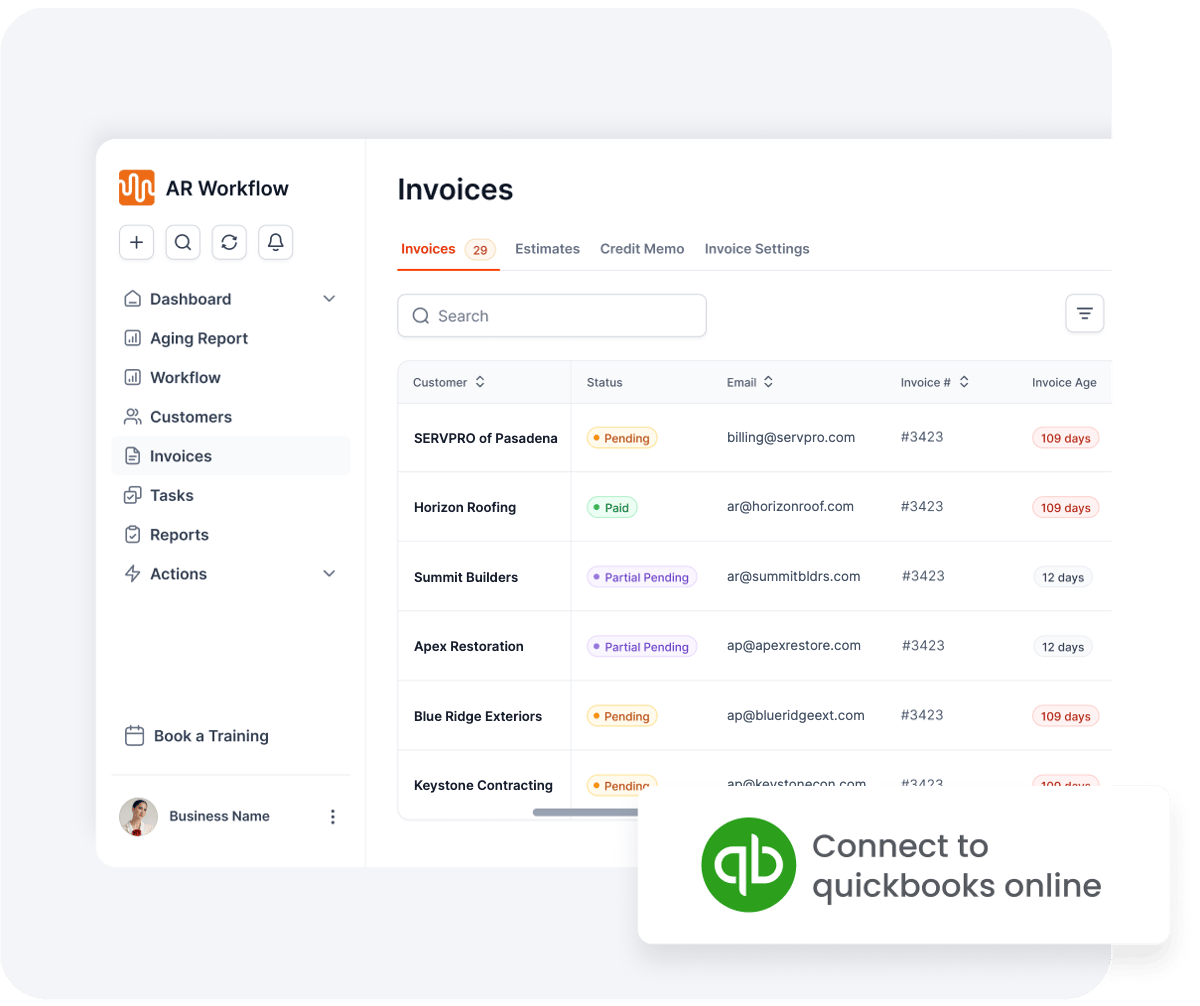
Connect QuickBooks Online and your open invoices sync in automatically.
AR Workflow connects to QuickBooks Online and does the follow-up QuickBooks leaves to you. Every open invoice goes on a schedule by email, two-way text and ringless voicemail from a dedicated number. Homeowners and commercial customers get a payment link for card or ACH. Adjusters and carriers get status requests, never a payment link. Follow-up pauses on a promise to pay and stops when the invoice is paid, and payments post back to QuickBooks automatically.
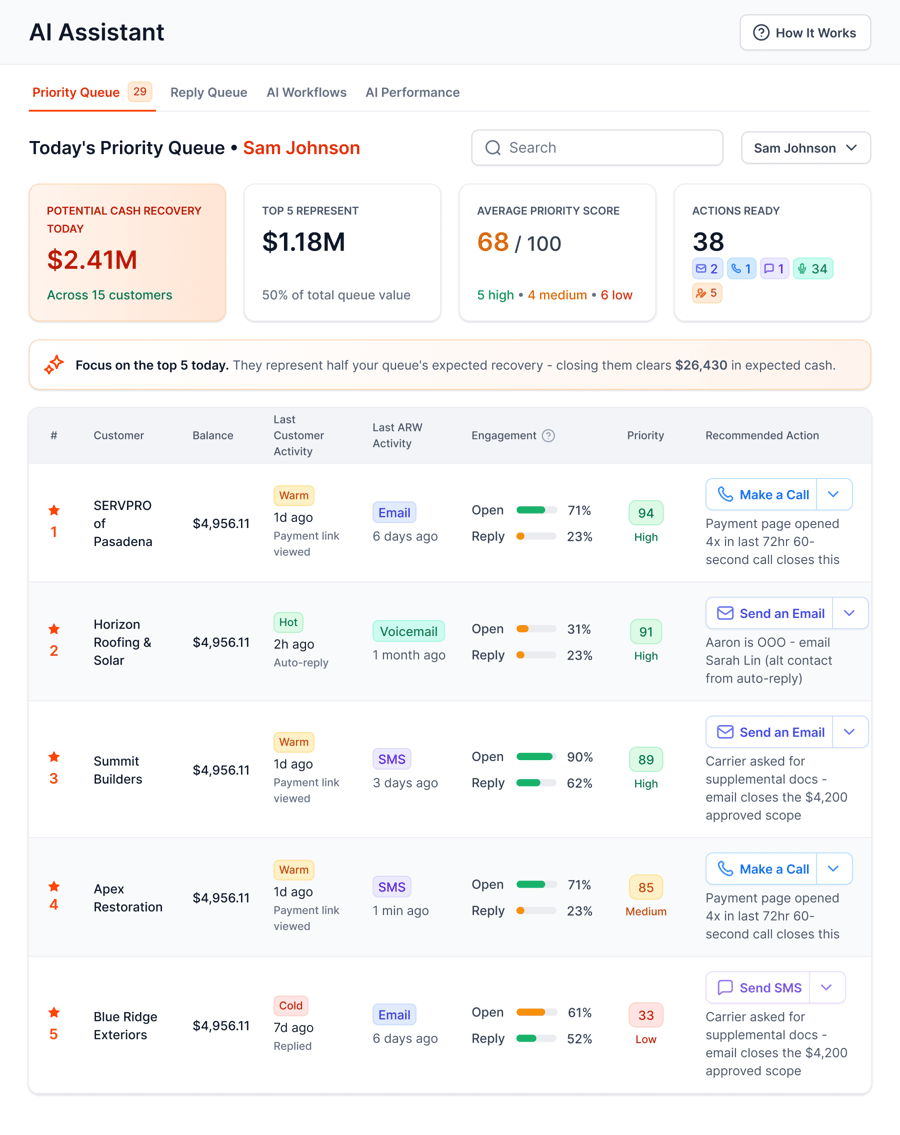
The Priority Queue shows your team who to contact today and what to do next.
Your accountant keeps working in QuickBooks. Your office gets a daily list instead of a weekly scramble. Learn more about QuickBooks collections with AR Workflow.
Example: A roofer has two jobs for the Smith family: a $14,000 roof and a $2,200 gutter job. Each is its own project in QuickBooks. A $3,100 shingle bill and two crew days ($1,600) are tagged to the roof project, so the Project Profitability report shows the roof's profit on its own, separate from the gutters.
Yes, for most small and mid-size contractors. QuickBooks Online handles invoicing, job costing through projects, progress invoicing, payroll and 1099s. It needs some setup for construction workflows like retainage, and it does not chase overdue invoices, so plan for collections separately.
Most contractors today choose QuickBooks Online on a plan that includes projects, because job costing depends on it. Larger firms already using Desktop Enterprise sometimes stay there. Check Intuit's current plan comparison, since features by plan change over time.
Yes. In QuickBooks Online, projects track income, costs, labor time and payments by job. Tag every bill, expense and time entry to a project, then use the project profitability report to compare actual margins with your estimates. Job costing in QuickBooks Online needs a plan that includes projects, usually Plus or Advanced.
There is no built-in retainage feature in QuickBooks Online. Many contractors bill the full amount, add a negative retainage line that posts to a retainage receivable account, and invoice it when released. Confirm the setup with your accountant.
QuickBooks Desktop Enterprise is sold in a Contractor edition with construction reports such as job costing and estimates vs actuals. QuickBooks Online has no separate contractor edition. Contractors on Online usually use the Plus or Advanced plan, which include projects for job costing.
Run the A/R aging summary or detail report weekly, follow up on the largest and oldest balances first, and record every payment against its invoice. QuickBooks Online can email invoice reminders, but texts, calls and promise dates need to be tracked separately so the next person knows where each invoice stands.
Create a customer for each client and a project for each job under that customer. Then tag every bill, expense, timesheet and invoice to the right project. The project's profitability view shows income minus costs for that job. Review it weekly while the job is running, not only at the end.
Track time by project. Each worker logs hours against the project they worked on that day, and QuickBooks assigns the labor cost to each job from those timesheets. If you enter payroll as one expense, split it into lines by project instead of posting it to one job.
QuickBooks Online supports progress invoicing, where you bill a percentage of an estimate at each stage. It does not create AIA G702 and G703 forms on its own in most plans. Many contractors use progress invoicing plus an add-on or a spreadsheet for the AIA forms. Check Intuit's current features for your plan.
Related reading
Built for contractors on QuickBooks Online.
Bring one overdue invoice to a demo and see who would be contacted, when, and how they would pay.
Photos: Unsplash. This article is general information, not legal, tax or accounting advice.
Each guide below has a 3-minute video at the top.
Sam owned and ran three restoration companies for more than 14 years and collected over $100 million in receivables. He built AR Workflow in 2020 to give contractors the collections system he wished he'd had.

AI writes the emails, sends the texts, and leaves the voicemails. Your team handles the conversations that matter, and your cash keeps moving.
 Keep QuickBooksStart with one invoiceStay in control

 Log in