
 Log in
The accounts receivable dashboard that shows what to do next.
See who owes you, how late it is, what nobody is chasing and who on your team is collecting. Synced with QuickBooks, updated all day.
Get a demo
THE PROBLEM WITH AGING REPORTS
An aging report tells you what went wrong. It doesn't tell you what to do.
Once a month, maybe once a week if cash is tight, someone runs the A/R aging report. The total goes to the owner, the scary column gets a few calls, and everyone goes back to work. It's a snapshot. It doesn't say which late invoices someone is working, which ones nobody has touched or who promised to pay on Friday.
- No view of follow-upYou can see late balances, but not whether anyone is working them.
- No view of the teamWhen collections is spread across a few people, nobody can tell who's moving money and who's stuck.
- Reports take too longPulling numbers together for the owner or the bank eats an afternoon every time.
STANDARD REPORTS
Collections reports you don't have to build.
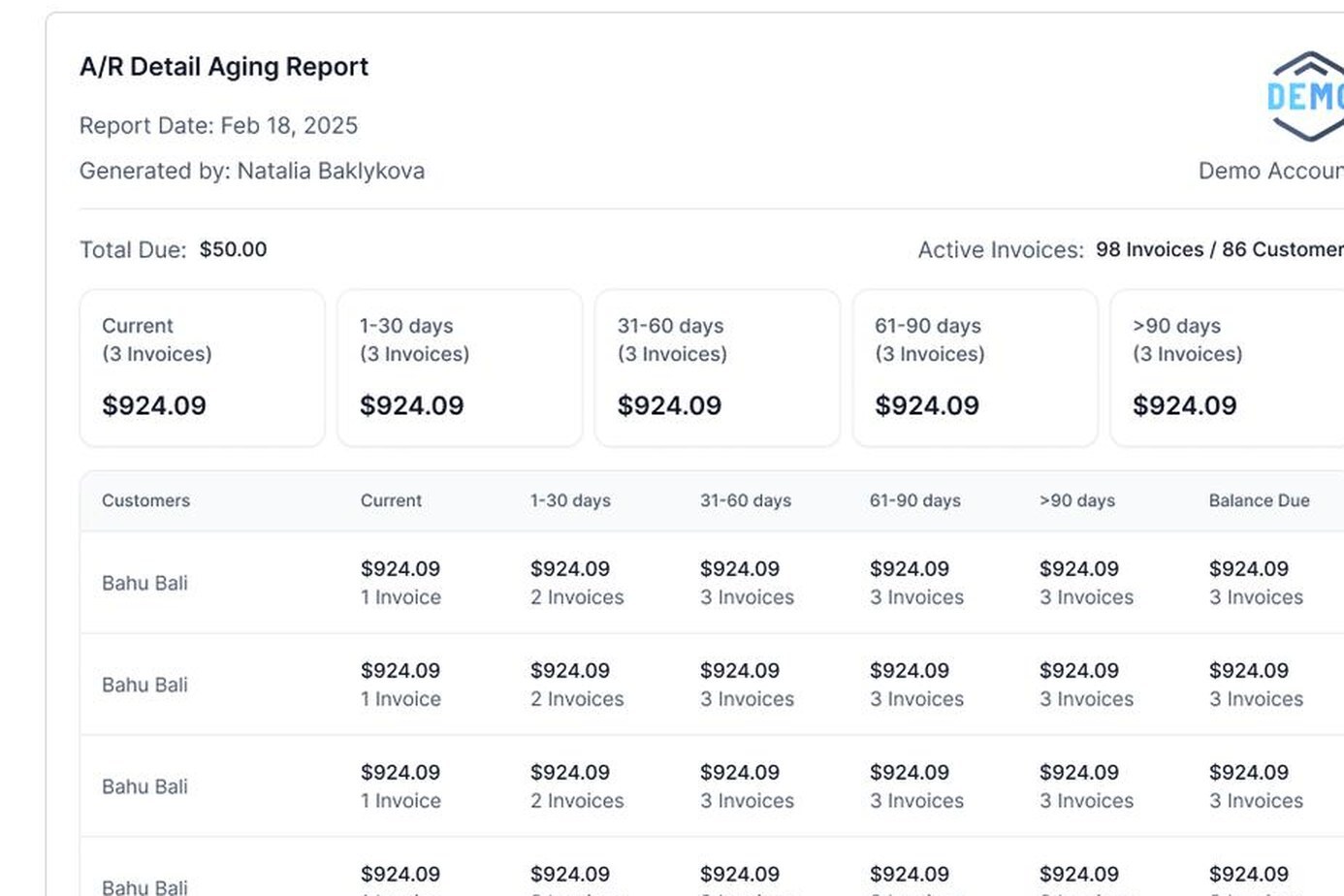
A/R Overview, Aging Detail, Collection, Cash Collected, Promise to Pay, Activity, Talk Time and Job Average come standard. Filter by customer, collector, date range and status, or set up custom reports for the numbers your lender or bonding company asks for.
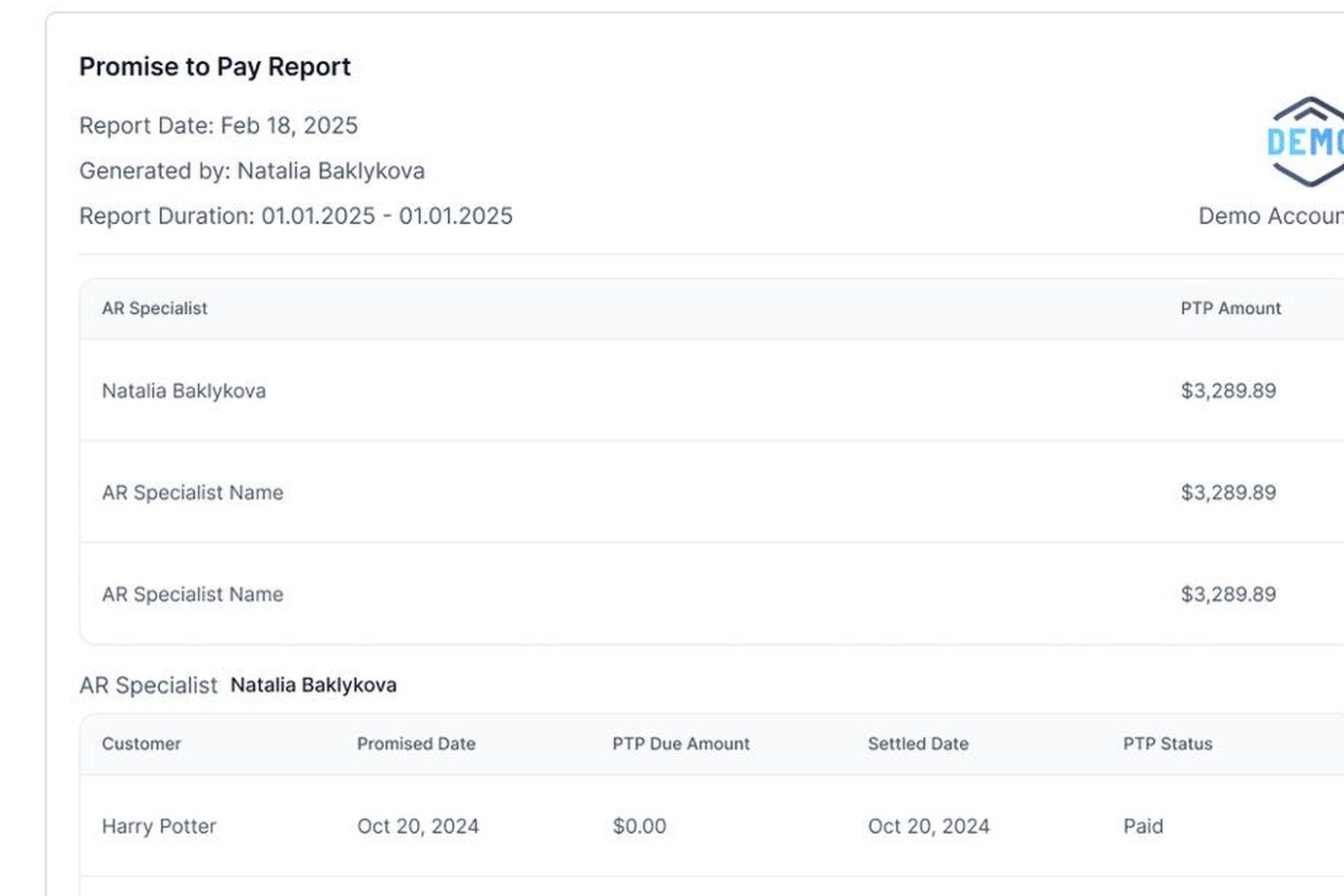
Promise to Pay
Who promised, for how much, and did they keep it? Plan the week's cash around it.
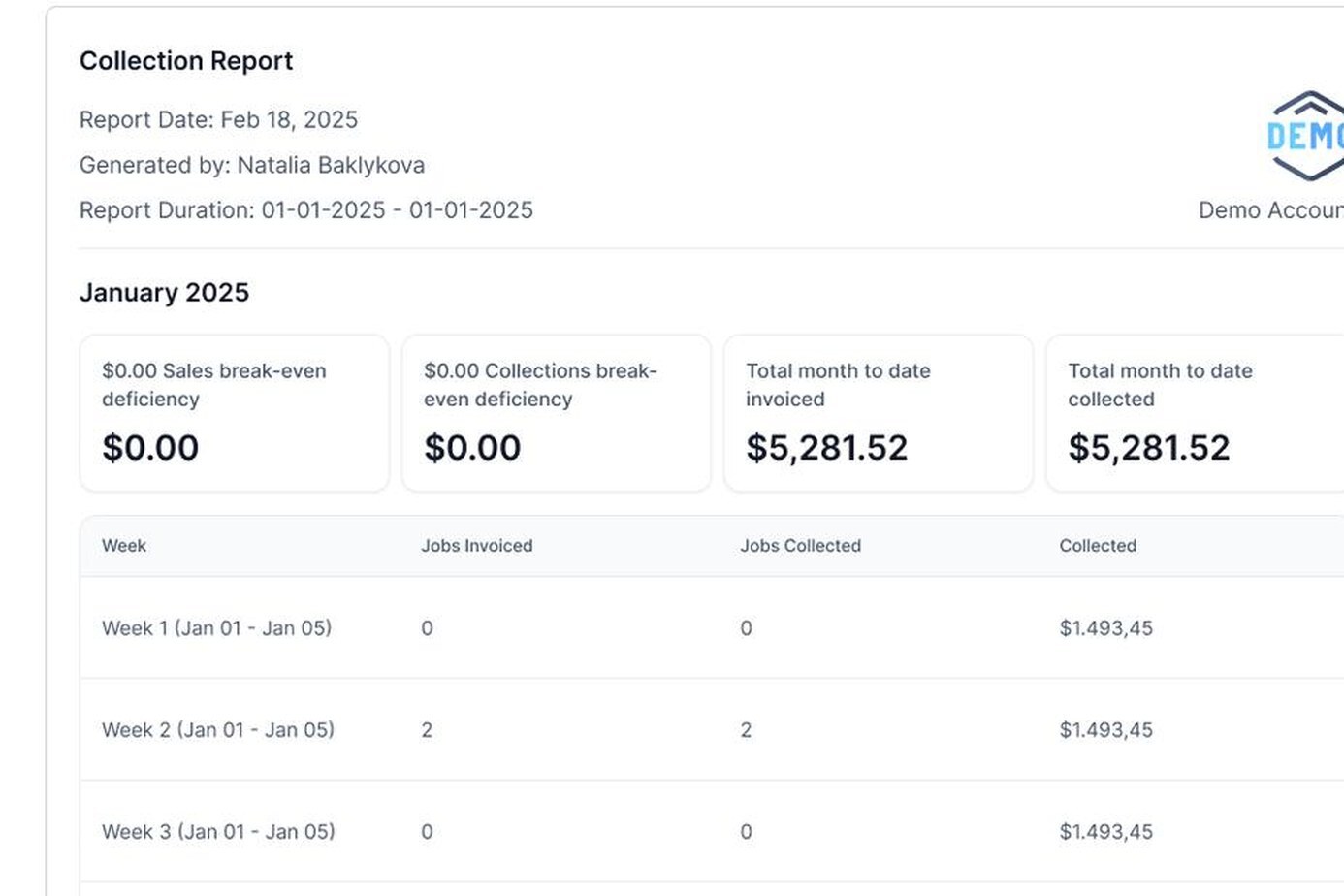
Collection
What did we collect, from whom, over this period?
DAYS SALES OUTSTANDING
Track DSO without a spreadsheet, and lower it without hiring.
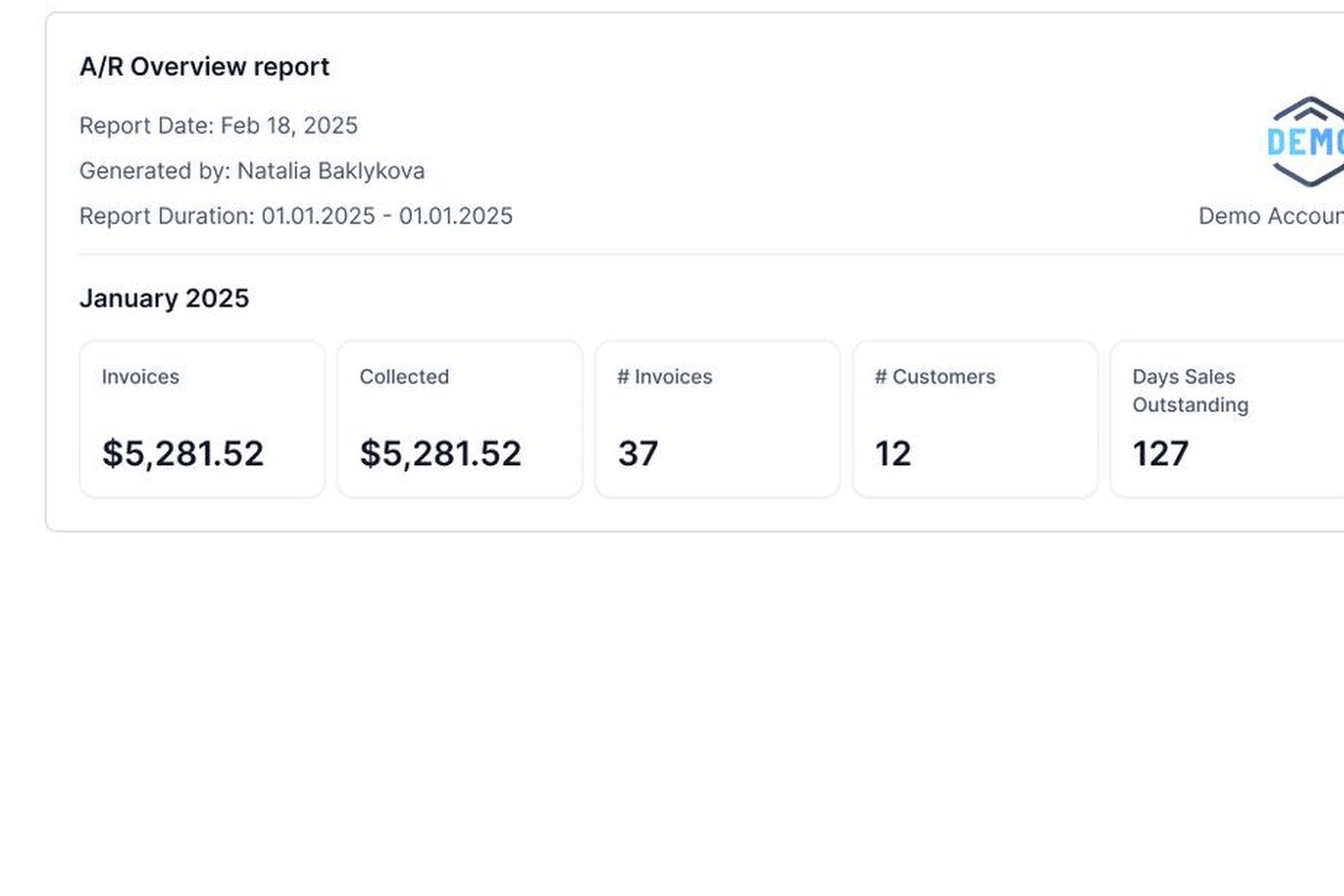
DSO is the average number of days it takes to turn an invoice into cash. Lenders and bonding companies often ask for it. The A/R Overview report calculates it for the period you choose, so you can watch the trend. If it's creeping up, these help, in order of effort:
- Invoice fasterBill the day the job is done, not at the end of the week.
- Make paying easyA payment link in every invoice, reminder and text. Card and ACH.
- Remind before the due dateA courtesy reminder catches the customers who simply forgot.
- Put every invoice on a planUnprotected AR is where DSO quietly grows.
- Offer payment plansOn large balances, instead of waiting for the whole amount.
- Review aging weeklyAct on the oldest balances first.

YOUR INVOICE, NOT A FEATURE TOUR
Bring us one overdue invoice. Watch the number move.
On the demo we connect a sample of your QuickBooks data and show you your own dashboard. You'll see:
- 1Your open AR and aging
- 2How much is unprotected right now
- 3One overdue invoice going onto a workflow

YOUR OPEN INVOICE
Past due[YOUR BALANCE]
 Status requestEmail
 Second touchText
 Still openVoicemail
Payer can pay by card or ACH

Paid
Posted to QuickBooks
FAQ
Accounts receivable dashboard FAQs
What is an accounts receivable dashboard?

An accounts receivable dashboard is a single screen that shows what customers owe you, how late it is and what's being done about it. AR Workflow's dashboard adds Unprotected AR and workflow coverage, with promises to pay a click away, so you can see where to act, not just where you stand.
How is this different from the QuickBooks aging report?
The QuickBooks aging report shows balances by age. AR Workflow shows the same buckets plus the follow-up status of every invoice, rollups by customer and job, promises to pay and collector performance. It also links each number to an action.
Does the dashboard update automatically?
Yes. Invoices and payments sync with QuickBooks Online throughout the day, so the dashboard reflects changes as they happen.
Can I see AR by job?
Yes. QuickBooks Projects and sub-customers roll up under the parent customer. See the total, then drill into each job.
Can I track DSO?
Yes. The A/R Overview report includes days sales outstanding for the period you choose.
Can my bookkeeper or a partner see the reports without editing anything?
Yes. A view-only role lets someone see dashboards and reports without changing data.
What should be on an accounts receivable dashboard?
Total open AR, aging by bucket, the amount with no follow-up plan, promises to pay coming due, recent payments and activity, and DSO over time. If more than one person collects, add performance by collector.
What is a good DSO for a contractor?
It depends on your trade, your mix of residential and commercial work and your payment terms. The trend matters more than the number. Compare yours month over month and against your own payment terms.
What's the difference between an AR dashboard and an aging report?
An aging report is a list of open balances grouped by how late they are. A dashboard puts that together with follow-up status, promises, payments and team activity, so you can see what to do next.
How often should I review accounts receivable?
Weekly for the dashboard and aging, daily for whoever works the Priority Queue, and monthly for DSO and the bigger trends.
How much does it cost?
The dashboard and reports come with every AR Workflow plan: $295, $395 or $495 per month. See pricing. There's no free trial. We'll show it on your own data during a demo.

Know where every dollar stands, and what's next.
See your own accounts receivable dashboard, built from one of your overdue invoices.
 Keep QuickBooks
- Start with one invoice
- Stay in control